Google: OAuth2 单一服务#
本文档包含为单一服务创建 Google 凭据的说明。也可以通过视频形式查看这些说明。
前置条件#
- 创建一个 Google Cloud 账户。
Managed OAuth2 托管 OAuth2#
n8n Cloud 用户可以对以下节点使用 Managed OAuth2 托管 OAuth2:
- Google Calendar
- Google Calendar Trigger
- Google Contacts
- Google Docs
- Google Drive
- Google Drive Trigger
- Google Mail
- Google Mail Trigger
- Google Sheets
- Google Sheets Trigger
- Google Slides
- Google Tasks
要使用 Managed OAuth2 托管 OAuth2,只需在凭据界面点击 Sign in with Google 使用 Google 登录。无需在 Google Cloud Console 或其他地方进行额外设置。
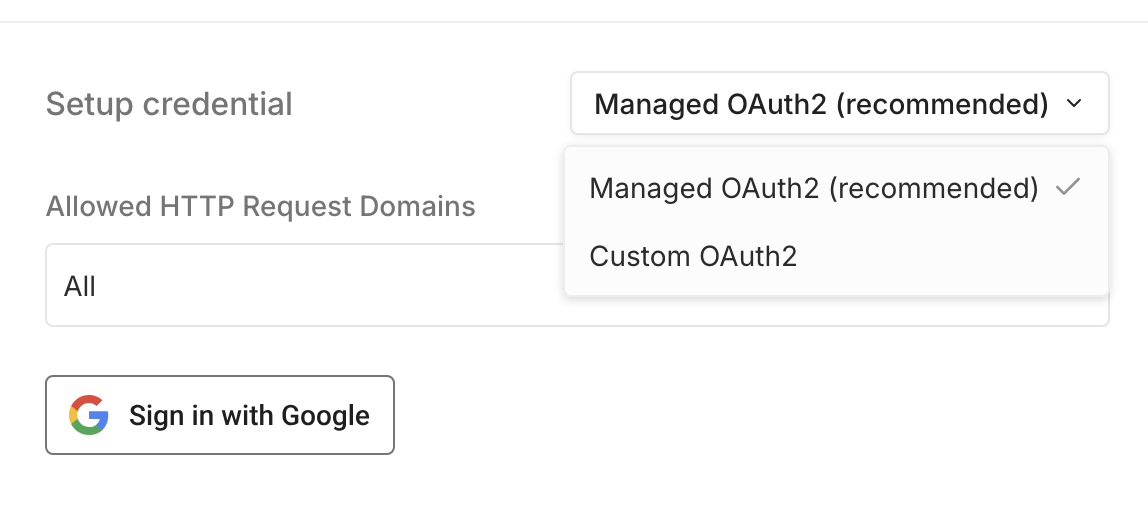
如果您更喜欢使用 Custom OAuth2,请使用下拉菜单更改身份验证类型。
Custom OAuth2 自定义 OAuth2#
Managed OAuth2 不适用于自托管 n8n 用户,也不适用于上面未列出的 Google 节点。您必须创建自定义 OAuth2 单一服务凭据。这意味着在 Google Cloud Console 中创建应用并使用 Client ID 和 Client Secret 将其连接到 n8n。
本文档的其余部分涵盖完整流程。
设置 Custom OAuth2 自定义 OAuth2#
将您的 n8n 凭据连接到 Google 服务需要五个步骤:
创建 Google Cloud Console 项目#
首先,创建一个 Google Cloud Console 项目。如果您已经有项目,请跳转到下一节:
- Log in to your Google Cloud Console using your Google credentials.
- In the top menu, select the project dropdown in the top navigation and select New project or go directly to the New Project page.
- Enter a Project name and select the location (Organization and/or Parent resource) for your project.
- Select Create.
-
Check the top navigation and make sure the project dropdown has your project selected. If not, select the project you just created.

检查 Google Cloud 顶部导航中的项目下拉菜单
启用 API#
创建项目后,启用您需要访问的 API:
- 访问您的 Google Cloud 控制台 - 库。确保您在正确的项目中。
检查 Google Cloud 顶部导航中的项目下拉菜单 - 转到 API 和服务 > 库。
- 搜索并选择您要启用的 API。例如,对于 Gmail 节点,搜索并启用 Gmail API。
-
某些集成需要其他 API 或需要您请求访问权限:
- Google Perspective:请求 API 访问权限。
- Google Ads:获取开发者令牌。
需要 Google Drive API
以下集成除了需要自己的 API 外,还需要 Google Drive API:
- Google Docs
- Google Sheets
- Google Slides
Google Vertex AI API
除了 Vertex AI API,您还需要启用 Cloud Resource Manager API。
-
选择启用。
配置您的 OAuth 同意屏幕#
如果您之前在 Google Cloud 项目中没有使用过 OAuth,您需要配置 OAuth 同意屏幕:
- 访问您的 Google Cloud Console - Library。确保您在正确的项目中。
检查 Google Cloud 顶部导航中的项目下拉菜单 - 打开左侧导航菜单并转到 APIs & Services API 和服务 > OAuth consent screen OAuth 同意屏幕。Google 会将你重定向到 Google Auth Platform 概览页面。
- 在 Overview 概览标签页上选择 Get started 开始,开始配置 OAuth 同意。
- 输入要显示在 OAuth 屏幕上的 App name 应用名称和 User support email 用户支持电子邮件。选择 Next 下一步继续。
-
对于 Audience 受众,选择 Internal 内部以供组织的 Google Workspace 内的用户访问,或选择 External 外部以供任何拥有 Google 账户的用户访问。有关用户类型的更多信息,请参阅 Google 的用户类型文档。选择 Next 下一步继续。
Testing mode 测试模式和测试用户
如果选择 External 外部,你的应用会默认为 Testing mode 测试模式。在此模式下,只有你手动添加为测试用户的 Google 账户才能完成 OAuth 流程;其他所有人都会看到「access denied」屏幕。请参阅 Google 尚未验证此应用了解如何添加测试用户。
-
选择 Google 应用于联系你了解项目变更的 Email addresses 电子邮件地址。选择 Next 下一步继续。
- 阅读并接受 Google 的用户数据政策。选择 Continue 继续,然后选择 Create 创建。
- 在左侧菜单中,选择 Branding 品牌。
- 在 Authorized domains 授权域部分,选择 Add domain 添加域:
- 如果你使用 n8n 的 Cloud 服务,添加
n8n.cloud - 如果你是自托管,添加你的 n8n 实例的域。
- 如果你使用 n8n 的 Cloud 服务,添加
- 在页面底部选择 Save 保存。
创建你的 Google OAuth 客户端凭据#
接下来,在 Google 中创建 OAuth 客户端凭据:
- 访问 Google Cloud Console。确保你在正确的项目中。
- 在 APIs & Services API 和服务 部分,选择 Credentials 凭据。
- 选择 + Create credentials 创建凭据 > OAuth client ID。
- 在 Application type 应用类型 下拉菜单中,选择 Web application Web 应用。
- Google 会自动生成一个 Name 名称。将 Name 名称 更新为你在控制台中容易识别的内容。
-
从你的 n8n 凭据中复制 OAuth Redirect URL OAuth 重定向 URL。将其粘贴到 Google Console 的 Authorized redirect URIs 授权重定向 URI 中。
自托管的 OAuth 重定向 URL
如果你在本地机器上运行 n8n,使用 Google OAuth 时不需要公共域名、SSL 证书或端口转发。Google 允许将 localhost 作为开发用途的有效重定向 URI。你的 n8n OAuth 重定向 URL 看起来类似:
http://localhost:5678/rest/oauth2-credential/callback有关可接受重定向 URI 的更多详情,请参阅 Google 的重定向 URI 文档。 -
选择 Create 创建。
完成你的 n8n 凭据#
Google 项目和凭据完全配置好后,完成 n8n 凭据:
- 从 Google 的 OAuth client created 弹窗中,复制 Client ID。将其输入到您的 n8n 凭据中。
- 从同一个 Google 弹窗中,复制 Client Secret。将其输入到您的 n8n 凭据中。
- 在 n8n 中,选择 Sign in with Google 使用 Google 登录 完成 Google 身份验证。
- Save 保存 您的新凭据。
视频#
故障排除#
Google 尚未验证此应用#
如果使用OAuth身份验证方法,您可能会看到警告Google hasn't verified this app Google尚未验证此应用。为避免这种情况:
- 如果您的应用User Type 用户类型是Internal 内部,请从您要身份验证的同一账户创建OAuth凭据。
- 如果您的应用User Type 用户类型是External 外部,您可以将您的电子邮件添加到应用的测试者列表中:转到Audience 受众群体页面,并将您登录时使用的电子邮件添加到Test users 测试用户列表中。
如果您需要使用由其他账户(开发者或其他第三方)生成的凭据,请按照 Google Cloud 文档 | 授权错误:Google 尚未验证此应用中的说明操作。
Google Cloud 应用变为未授权#
对于发布状态设置为测试且用户类型设置为外部的 Google Cloud 应用,同意和令牌会在七天后过期。有关更多信息,请参阅 Google Cloud Platform 控制台帮助 | 设置您的 OAuth 同意屏幕。要解决此问题,请在 n8n 凭据模态框中重新连接应用。
redirect_uri_mismatch#
此错误表示 n8n 发送的重定向 URI 与 Google Cloud Console OAuth 客户端中注册的任何 URI 都不匹配。
修复方法: 从 n8n 凭据面板复制 OAuth Redirect URL OAuth 重定向 URL,并将其完整粘贴到 Google OAuth 客户端的 Authorized redirect URIs 授权重定向 URI 字段中,包括协议(http 或 https)和端口号。
Access denied / "app not verified"#
这通常发生在你的应用仍处于 Testing mode 测试模式,且你尝试用于身份验证的 Google 账户尚未添加为测试用户时。
修复方法: 前往 APIs & Services API 和服务 > OAuth consent screen OAuth 同意屏幕 > Test users 测试用户,然后添加你尝试使用的账户。
invalid_client#
此错误通常表示 n8n 凭据中的 Client ID 或 Client Secret 与 Google Cloud Console 中的值不匹配。
修复方法: 返回 Google Cloud Console 中的 OAuth 客户端,重新复制这两个值,并在 n8n 中重新输入。复制时请注意不要意外带入空格。